
Question: How do I restore deleted email for a user in Google Workspace (Gmail)?
Explanation: Imagine an employee has accidentally deleted an important email. Don't panic! If the email was recently deleted, chances are it can still be recovered. Gmail has a 'trash can' where deleted emails are temporarily stored, and otherwise, as a Google Workspace administrator, it is possible to restore emails, provided you are in time.
Solution:
1. Check the Trash:
- Go to Gmail.
- Click on 'More' in the menu on the left.
- Click on 'Trash'.
- If you found the email, select it and click on 'Move to' and then choose the inbox or another label. It is also possible to drag the message to the correct label in Gmail.
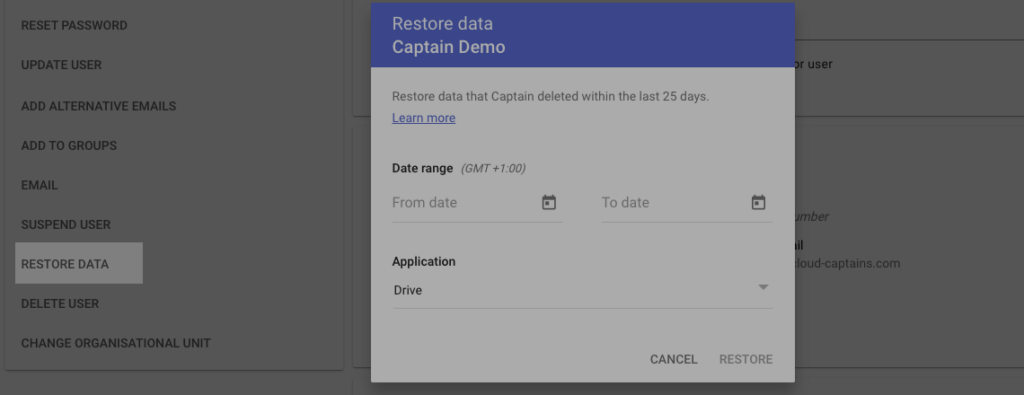
2. Restore via the Admin Console: If the email is not in the trash and was deleted less than 25 days ago, you as an administrator may be able to restore the email via the Google Workspace admin console.
- Go to admin.google.com.
- Go to 'Users'.
- Find the user.
- Click on the three dots next to the user's name and select 'Restore data'.
- Select the period for which you want to restore data (within the last 25 days).
- Select 'Gmail' as the type of data you want to restore.
- Click on 'Restore'.
Note: After 30 days, emails are permanently deleted from the trash and cannot be recovered, even by an administrator.
What data you can restore:
- Restore data that was permanently deleted in the last 25 days.
- Select a period to restore data deleted during that period.
- Check the user's Gmail inbox to verify that data has been restored.
You cannot restore the following data:
- Data permanently deleted more than 25 days ago.
- Deleted messages from the Spam folder.
- Deleted email drafts.
- Deleted labels or nested label structure.
- Data from the user's trash.
More information can be found by clicking on this link.


